In this update
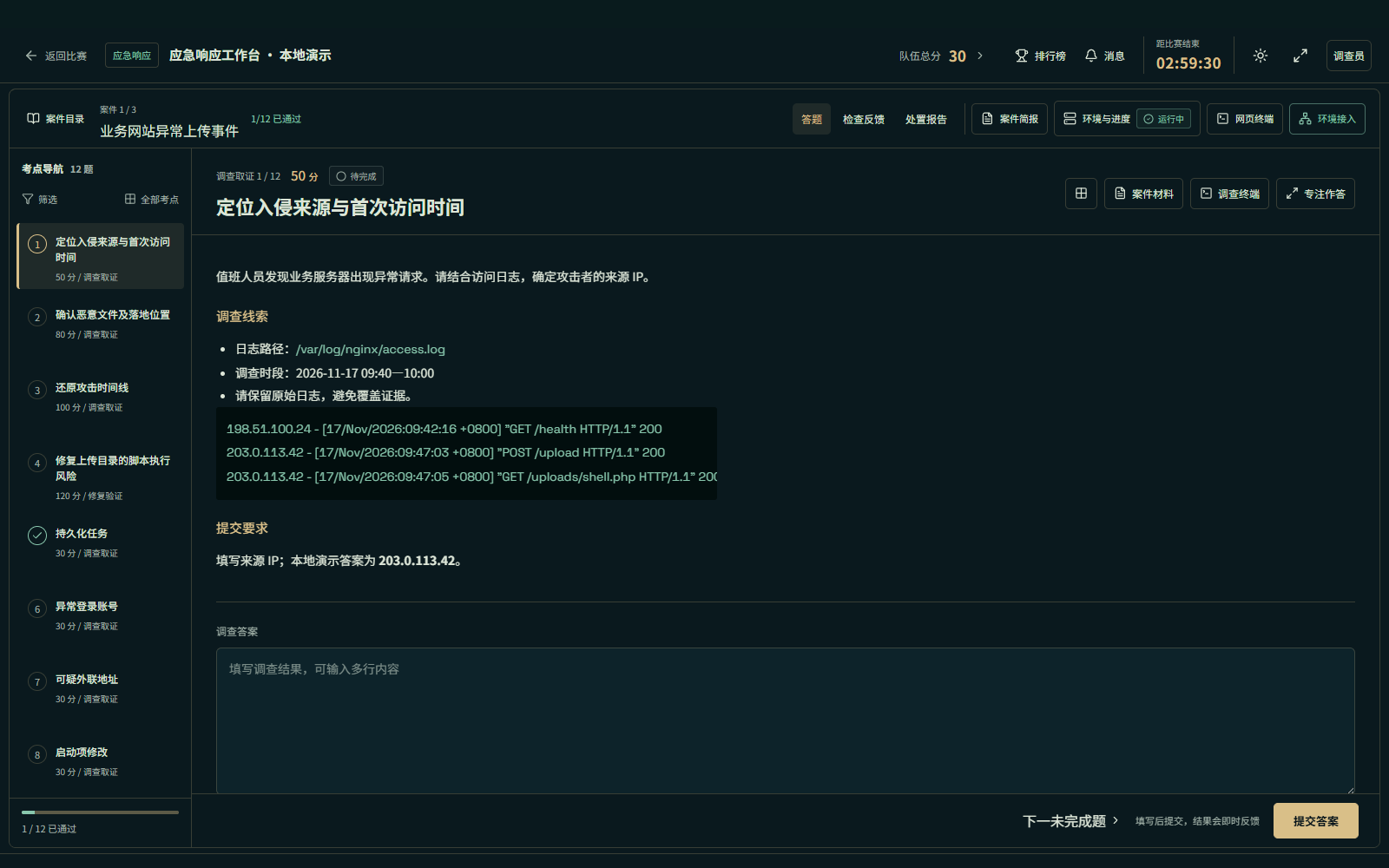
- A focused case workspace brings questions, answers, and feedback together.
- One access dialog for the browser terminal and case-enabled SSH / VPN.
- Clearer feedback for repair checks, reports, and environment operations.
Investigate
Read case materials, analyze evidence, and submit answers.
Verify repairs
Remediate your team's environment and verify the result.
Report
Document the response, attach evidence, and save report versions.
Incident response competitions assess more than finding an answer. Participants need to understand an event, diagnose the problem, repair it, and explain their response. The updated YQHL workspace connects these tasks so that case reading, environment access, answer submission, and reporting follow a clearer path.
These notes cover incident response capabilities already available on the platform and workspace improvements deployed on November 16–17.
Screenshots show the actual client-v2 participant interface running against a local mock. Case content, accounts, scores, check results, and access addresses are demonstration data. The SSH information shown cannot be used for real connections. The screenshots use the Simplified Chinese interface.
A workspace focused on the current case
Participants can switch cases and use the answering, check feedback, and response report views in one workspace. Separate actions open the case brief, environment progress, browser terminal, and connection settings.
- Open the case directory when needed. The directory starts collapsed and supports search and filtering, leaving more room for the current task.
- Keep questions and answers together. The main area combines the selected question, answer fields, and submission feedback, with a focused answering view for longer tasks.
- Read instructions and references in the case brief. The brief brings case background, task instructions, and reference materials together for investigation.
- Open tools on demand. The browser terminal opens a side panel with an adjustable width on desktop. Environment progress and access settings open in separate dialogs.
Investigation, repair verification, and reporting
Investigation
Organizers define investigation questions and checkpoints for each case. Participants review instructions and evidence, analyze logs, files, or configuration, and submit their findings. Task states and submission feedback show their progress.
Evidence-only cases are supported; an online environment is not required for every case.
Repair verification
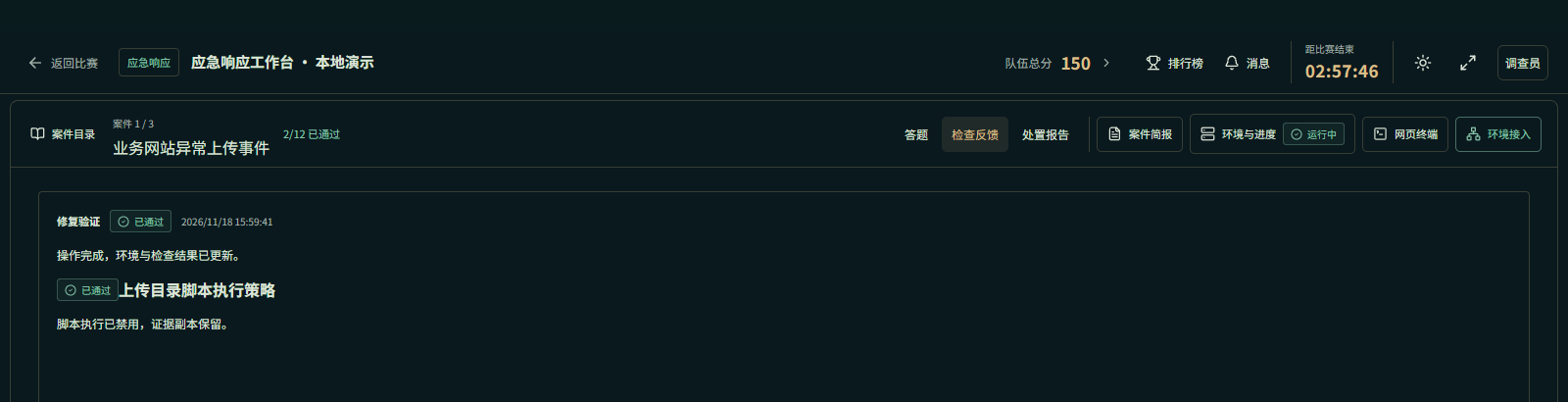
For hands-on cases, participants remediate their own team’s environment and verify the result under the competition rules. Verification can be manual, periodic, or both. Organizers configure manual attempt limits, cooldowns, and the amount of feedback disclosed.
Submit a repair check from the selected task, then review its queue, execution, and completion states in the check feedback view. Results include the check items that the event rules allow participants to see. An accepted request may still be running in the background.
Response reports
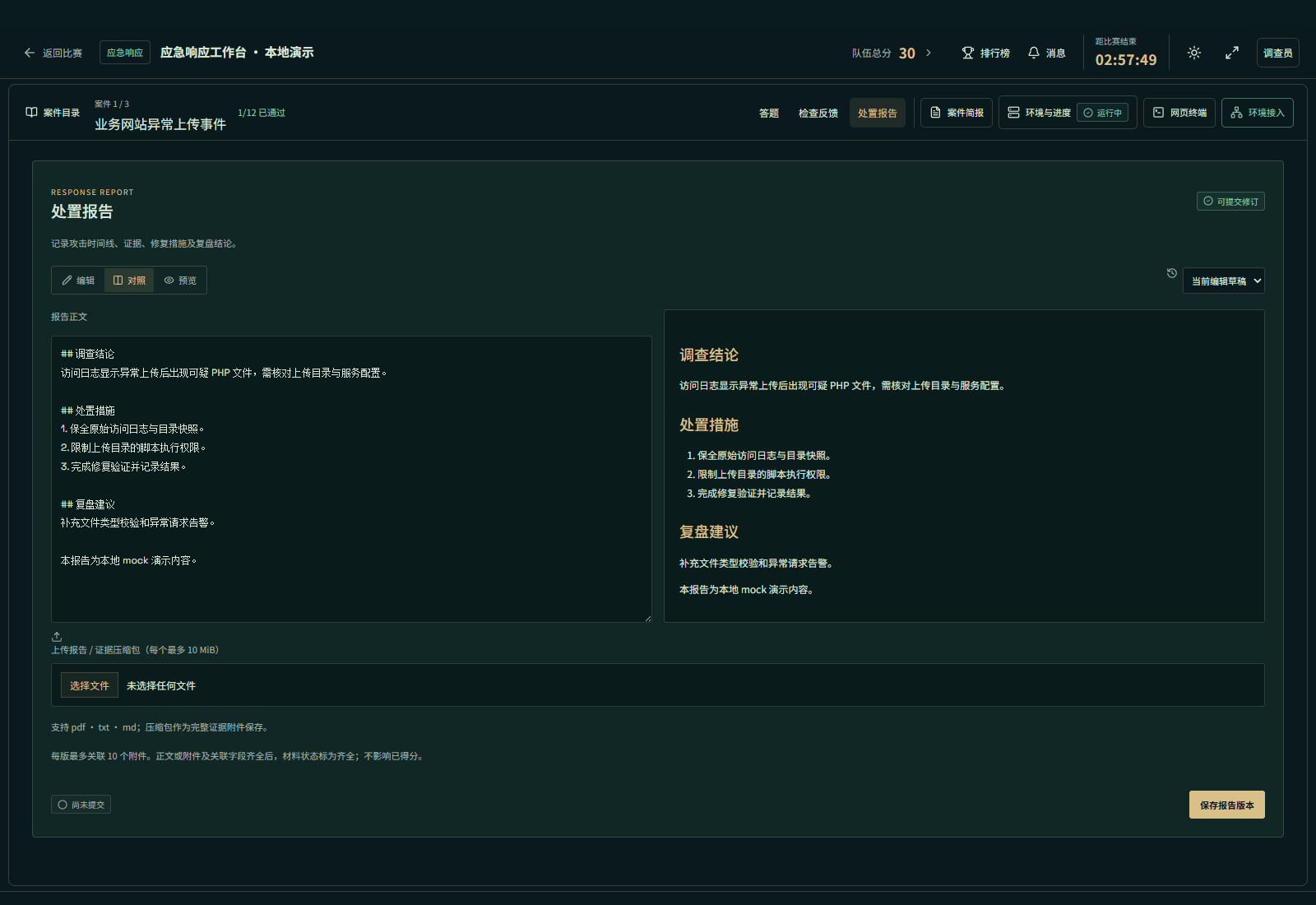
The response report view supports editing, a split comparison view, and preview. Participants can write the report, upload report or evidence attachments, save versions, and review earlier versions through the version selector. Supported formats include PDF, Markdown, text, Word documents, and common archives. Allowed formats, file sizes, and deadlines depend on the competition settings.
Reports can be required, optional, or disabled to suit the event’s assessment goals.
One entry point for environment access
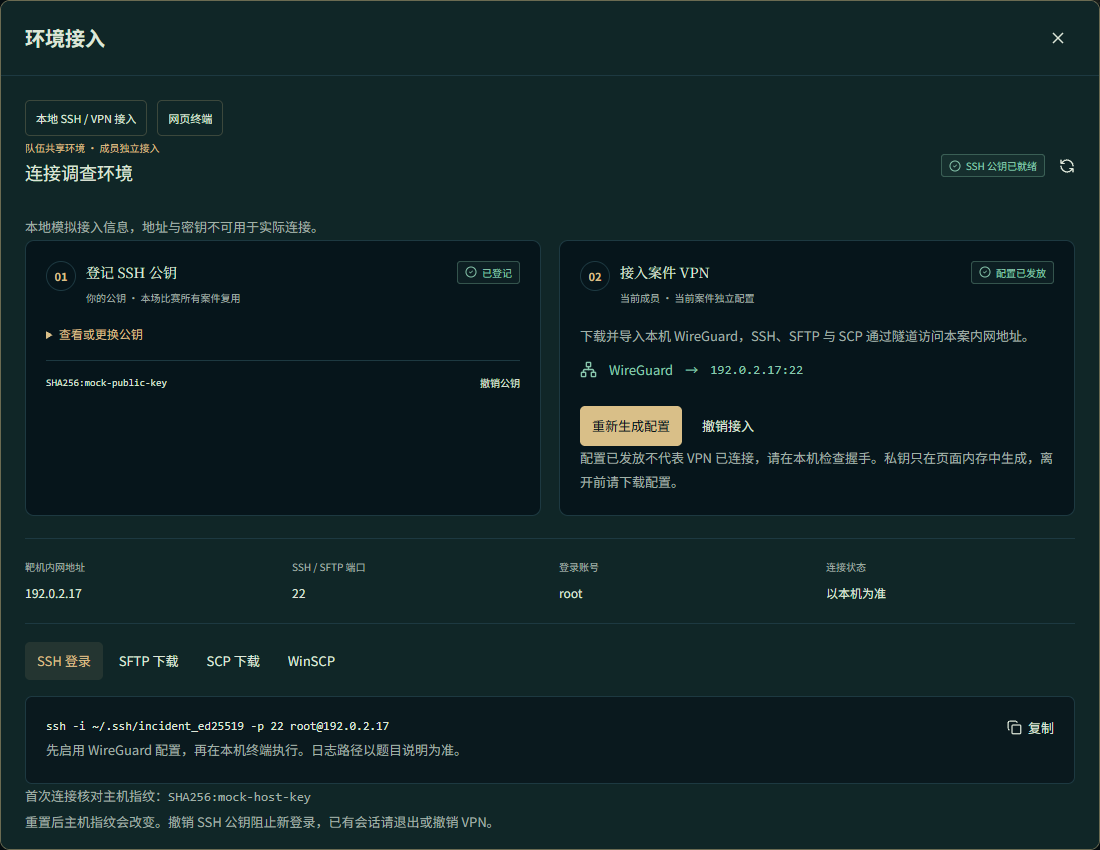
Hands-on cases can provide an isolated Linux environment for each team. The environment access dialog offers:
- Browser terminal: investigate and repair directly in the browser.
- Local SSH / VPN: for cases with SSH enabled, register a local SSH public key, download a VPN configuration, import it into WireGuard, and connect using the command shown in the workspace.
- File transfer: use SFTP, SCP, or WinSCP to download logs and evidence in cases that support local access.
SSH access requires a compatible case image and organizer configuration. Cases without SSH enabled display setup guidance. Connections are permitted only while the case is open and its environment is running. Participants generate and keep their private keys locally.
This update also improves VPN configuration filenames for import on Windows.
Clearer environment operation feedback
Starting, stopping, restarting, resetting, and reclaiming environments may involve background tasks. The workspace displays operation progress and results alongside environment state, helping participants see when work is still pending and when they can continue.
Organizers configure environment runtime, resource limits, concurrency, and reset policies. Environment runtime is managed separately from the competition schedule.
Restarting preserves environment changes but disconnects active sessions. Resetting clears changes and rebuilds the environment. Reset availability, attempt limits, and cooldowns depend on event rules. Download important evidence before a reset.
Enabling the workflow for an event
- Prepare case instructions, references, investigation checkpoints, and repair checks in the incident response administration module.
- Configure images and resources for cases that need an environment. Confirm image and node support before enabling SSH / SFTP.
- Bind a case version to the competition or stage, then configure availability, verification, and report requirements.
- Use a test team to complete the full workflow before opening it to participants.
The hosted platform has been updated. On-premise installations need coordinated upgrades of the server, nodes, administration interface, and participant interface. Bound cases use a definition snapshot; configuration changes should be introduced through a new case version and a planned environment rebuild.
Explore the competition platform or request a demo to discuss a suitable case design and deployment for your event.