In this update
- View rounds, countdowns, team service states, and overall rank together.
- Read team topology and authorized network access as separate sources of information.
- Configure SSH / SFTP public keys and confirm Flag results beside the form.
Check the round
Confirm the current stage and submission window.
Connect and defend
Access team services, analyze logs, and keep applications available.
Submit and review
Obtain Flags within the authorized scope and check receipts and rankings.
AWD teams must track attack opportunities while keeping their own services available. The YQHL workspace brings rounds, team topology, network access, Flag submissions, and rankings into one page to support coordination and status checks.
These notes cover features implemented in the current participant client. Screenshots come directly from client-v2 running against a local mock in Simplified Chinese. Teams, rounds, scores, and network information are simulated. The VPN and SSH addresses and public keys are unusable demonstration values.
Check the round before acting
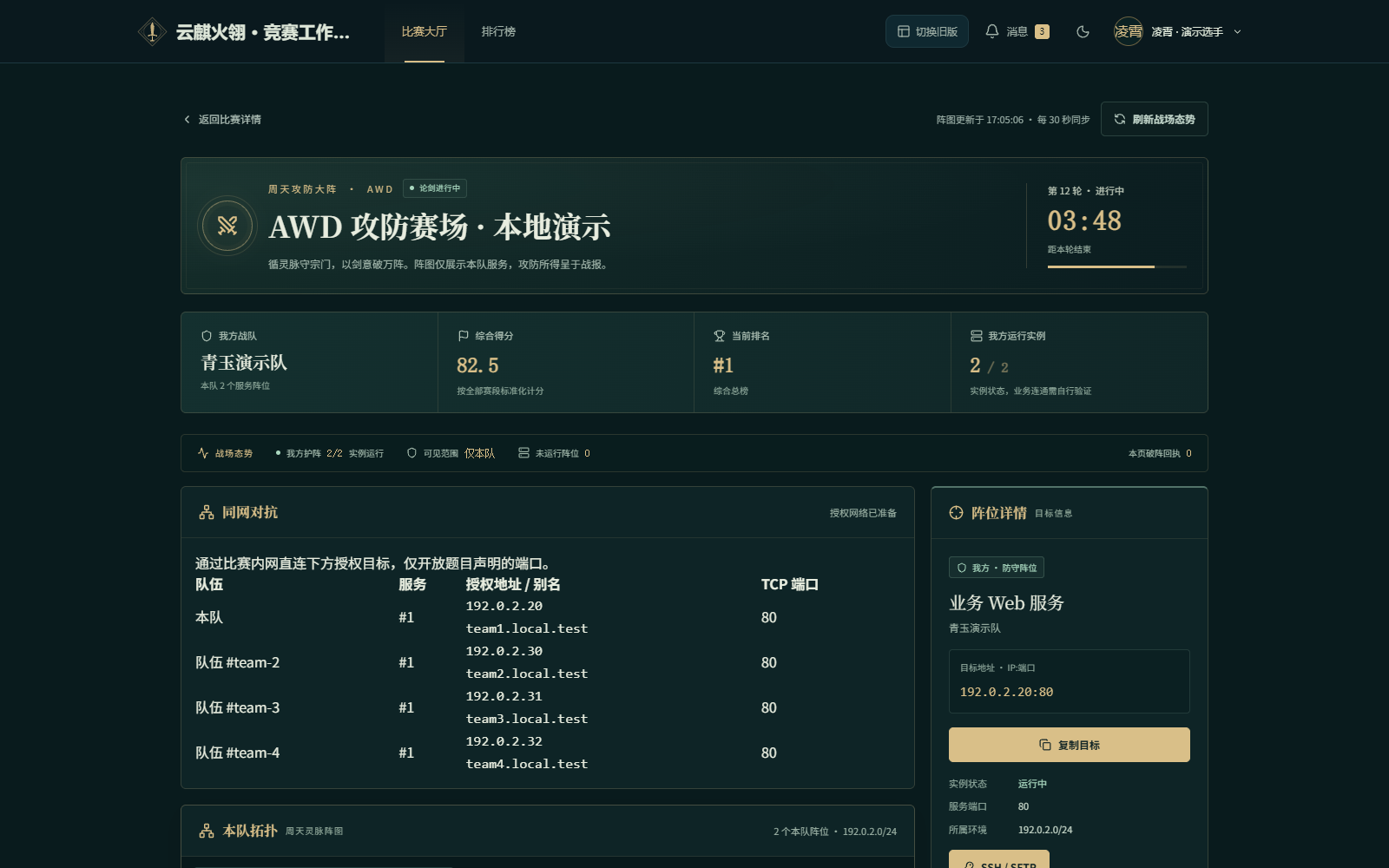
The header shows the round, state, and countdown, alongside team name, overall score, rank, and running-instance count. If the event has a Flag grace period, the page identifies the remaining submission window after the round ends.
Battlefield data synchronizes periodically and can be refreshed manually. The countdown helps teams plan timing; the platform still validates submissions against round timing, Flag ownership, and event rules.
A running instance represents the state reported by the platform. Teams should separately verify application access, protocol behavior, and whether their repairs preserve service availability.
Identify defensive services in team topology
The topology shows only the team’s own services. Participants can search names or IP addresses, pan and zoom, and select a node. The detail panel follows the selection with address, service port, instance state, and access actions.
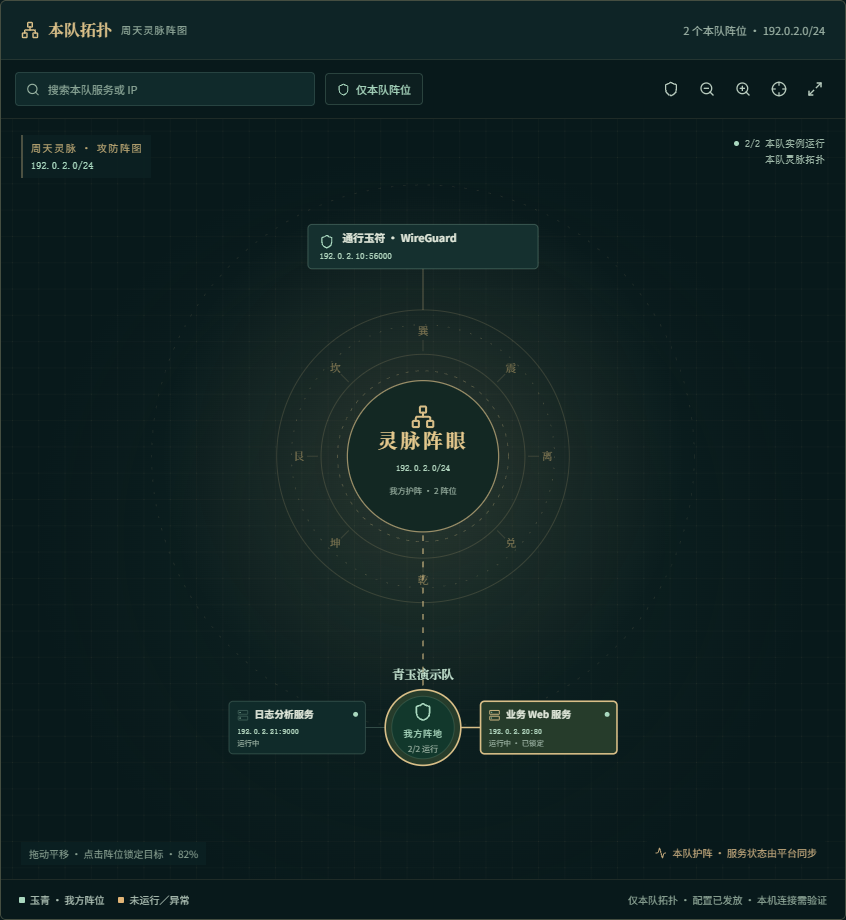
Use this view to locate defensive environments. A separate authorized-network panel explains attack-target visibility and connection methods. Selecting an own-team node does not change the ownership of a submitted Flag.
Confirm network authorization and access separately
The current implementation supports different network presentations according to event configuration:
- Flat network: lists authorized direct targets and declared ports.
- Visible segments: provides permitted targets and proxy access instructions for the arena configuration.
- Discovery segments: hides remote target or entry information according to the rules and shows only permitted guidance.
The cover screenshot illustrates flat mode. Other AWD events may disclose different information; teams should follow the active panel and event rules.
The access panel supplies a WireGuard download, endpoint, tunnel address, and permitted subnet. After importing it into a local client, verify both the tunnel and service access. An issued configuration does not establish that the participant’s VPN is connected.
Use SSH / SFTP for repairs and log analysis
For SSH-enabled services, open SSH / SFTP from node details, generate a key locally, and import the .pub public key for synchronization. Each team member registers an individual key and keeps the private key on their own computer.
The dialog shows access state, SSH and SFTP commands, an SCP log-download example, WinSCP guidance, and the host fingerprint. Adjust actual addresses, private-key paths, and log paths when using local tools.
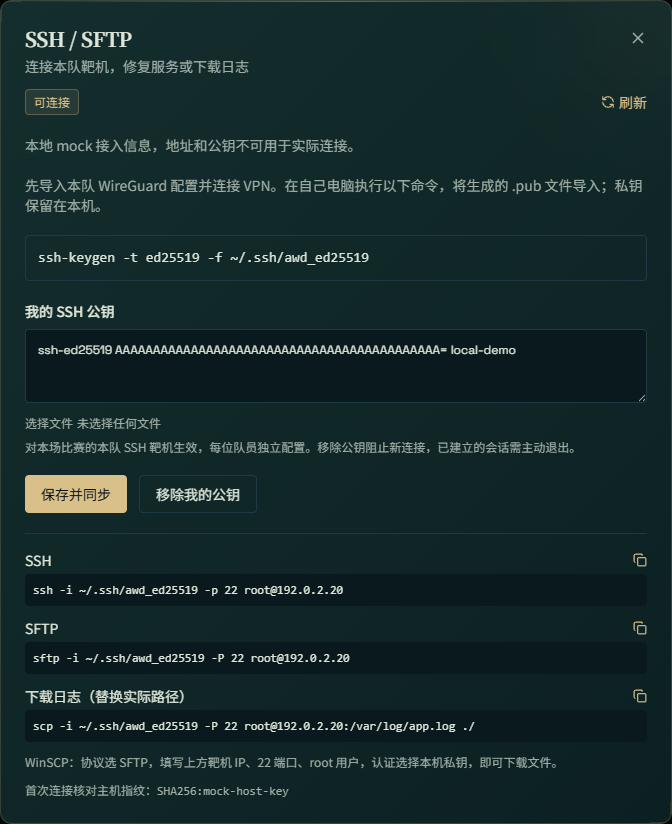
Access depends on eligibility, the service image, node support, and network configuration. Removing a public key blocks new connections; established sessions need to be closed separately. If access is disabled or unavailable, follow the status guidance and confirm event configuration.
Read Flag receipts and overall rankings separately
Submit a Flag obtained from an authorized opponent service in the form. The workspace shows acceptance or rejection feedback nearby. Accepted submissions also appear in the current page’s submission record so teams can confirm recent actions.
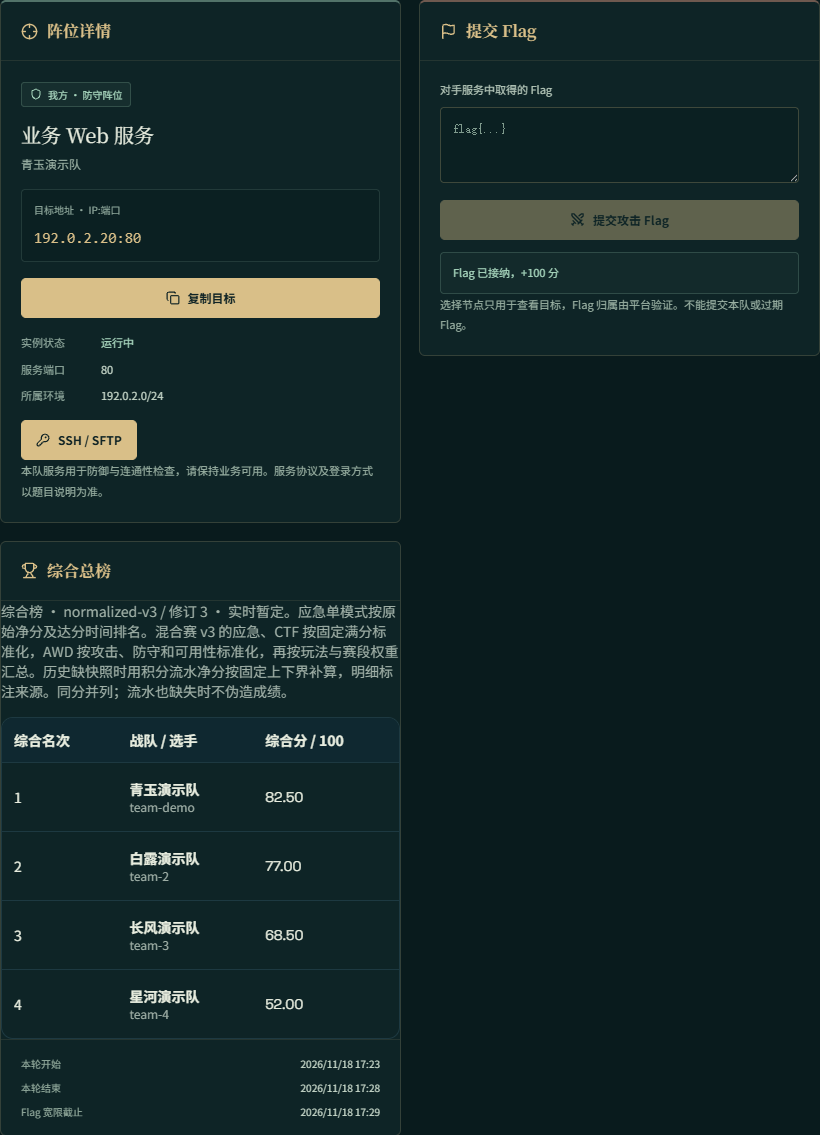
The current-page record keeps successful receipts from that page session. It is not persistent cross-page history. Own-team and expired Flags cannot be submitted; ownership is validated by the platform.
Flag acceptance and final score settlement are separate steps. The overall leaderboard applies event-defined attack, defense, availability, and stage weights and may show standardized scores marked provisional. A receipt’s points do not necessarily equal the change in overall standardized score. Use the frozen or officially published results at event completion.
Check the workflow before opening an event
- Organizers confirm network mode, authorized ports, round duration, grace windows, and scoring rules.
- A test team verifies topology, VPN configuration, public-key synchronization, and actual service access.
- In an isolated test environment, check repairs, service monitoring, Flag submissions, and rankings before opening the event.
- Participants enter the open stage, connect to their own services, verify availability, and follow authorized attack scope while watching receipts and rankings.
On-premise installations need compatible backend, node, and participant versions. Mock checks verify presentation and page interactions; they do not replace network-isolation, service-monitoring, attack, or scoring integration tests.
Explore the AWD competition system, read the CTF workspace walkthrough for an earlier challenge stage, or review the combined competition platform and request a demonstration.