In this update
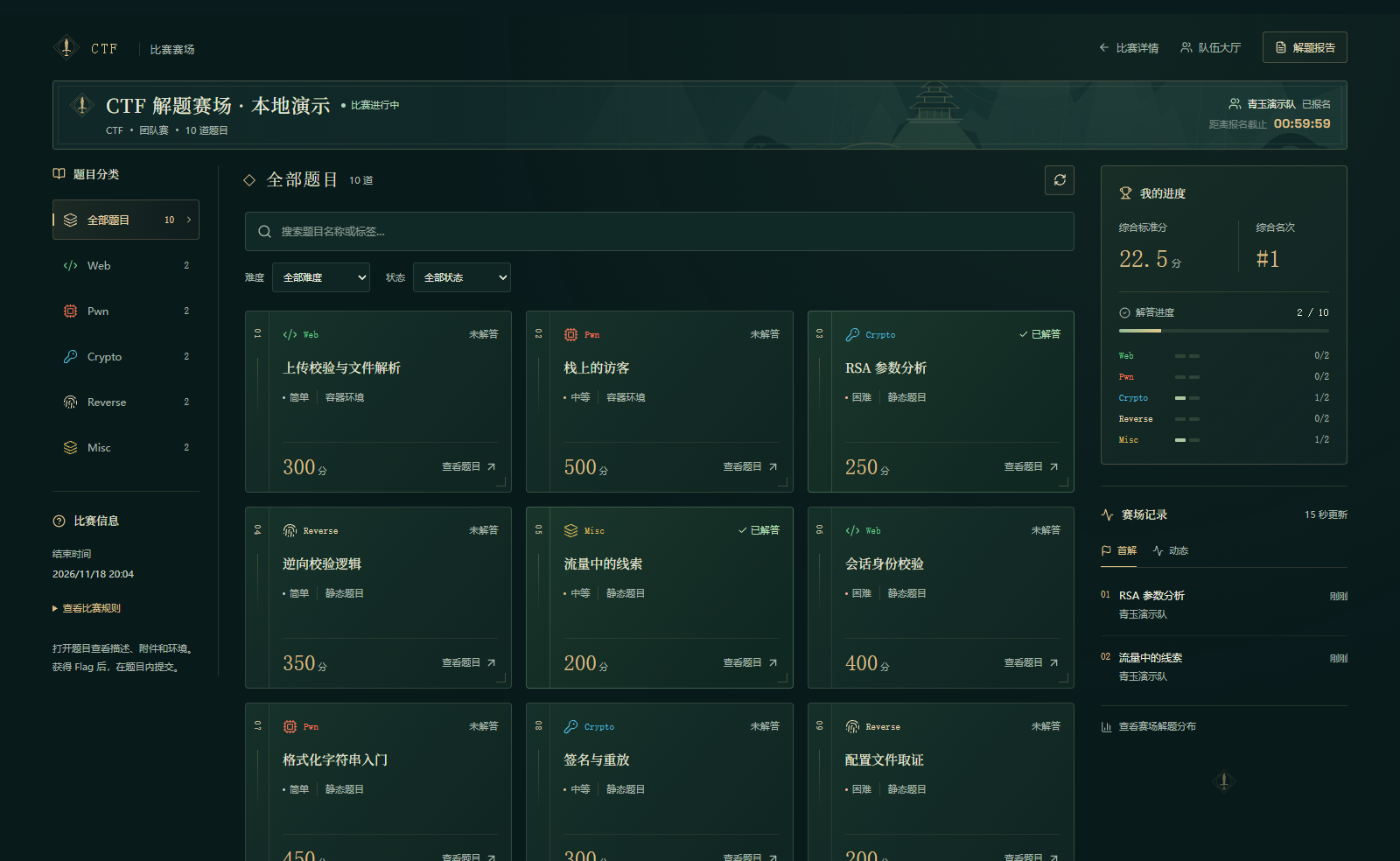
- Combine categories, search, difficulty, and solved status to choose the next challenge.
- Read instructions, access attachments, manage environments, and submit Flags in one dialog.
- Submit Markdown writeups and confirm their status in My submissions.
Choose
Filter challenges by technical category and progress.
Solve
Read materials, access the environment, and submit a Flag.
Review
Document the analysis and check writeup submission records.
In a CTF competition, participants move between challenge lists, attachments, environments, and answer forms. The YQHL CTF workspace connects these tasks: choose a challenge, read its materials and manage its environment in the detail dialog, submit a Flag, and document the solution in a writeup.
These notes describe features implemented in the current participant client. Screenshots show the actual client-v2 interface running against a local mock in Simplified Chinese. Challenges, teams, times, and scores are simulated; the displayed addresses cannot be used for real connections.
Combine filters to find the next challenge
The workspace groups challenges by technical category and offers name or tag search, difficulty, and solved-status filters. Participants can combine them, such as choosing Web and showing only unsolved easy challenges.
Cards show category, difficulty, type, points, and solved status. Static and container challenges are identified so teams can plan offline analysis and online work. Filter settings are reflected in the page address and can be retained when returning to the list.
The progress panel summarizes solved challenges, category progress, and overall rank. Competition records provide first-solve and activity views. An overall standardized score and an individual challenge’s points represent different values; multi-stage events need to be read alongside their scoring rules.
Read, connect, and submit from challenge details
The detail dialog brings together Markdown instructions, attachment links, the challenge environment, and Flag input. Organizers can structure tasks with headings, lists, and code examples.
For container challenges, the environment panel shows state, address, and remaining runtime. Participants can start the environment, access it once running, and close it afterward. An accepted start request may still be preparing resources; wait for the running state and access information.
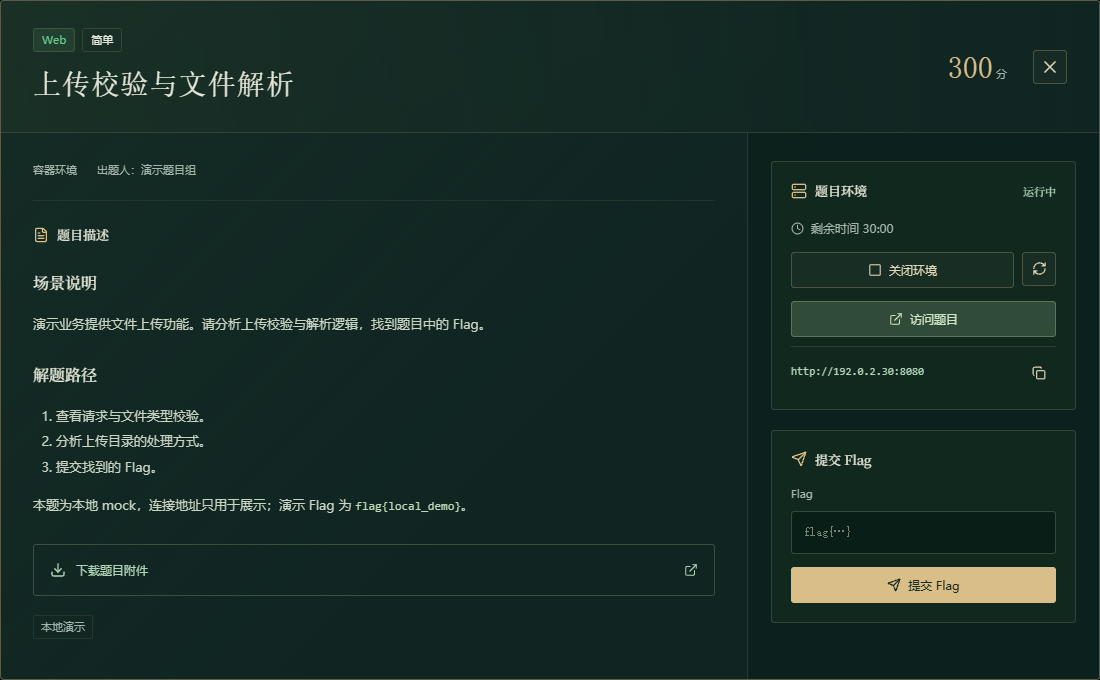
Environment runtime and competition duration are separate. Static challenges may require only instructions and attachments. Capacity, runtime, and connection methods depend on event configuration.
Flag feedback beside the input
Participants submit a Flag for the selected challenge. The workspace checks empty input and displays a pending state while sending it. Incorrect results appear beside the form so participants can review the input and retry.
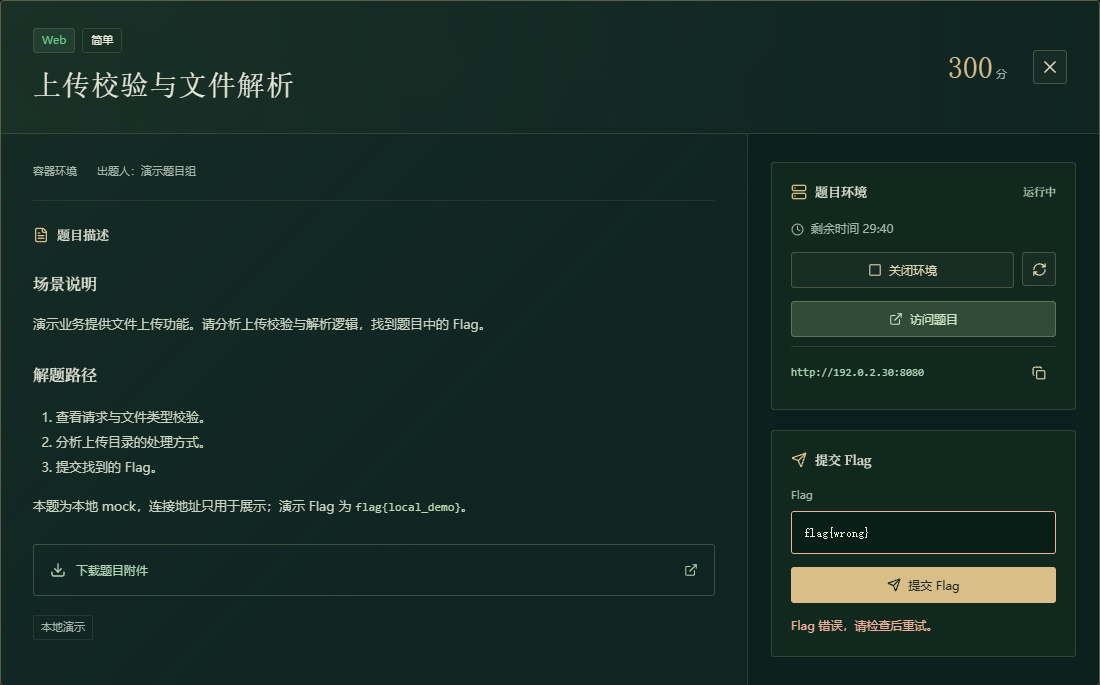
A correct submission updates the solved state and attempts to close the corresponding environment. If closing fails, the workspace prompts the participant to handle it manually. Challenge points and scoring rules remain event-defined; read submission feedback together with the leaderboard and rules.
Document the solution in a writeup
The writeup dialog provides challenge selection, Markdown text input, and an optional attachment URL. Participants can record diagnosis, evidence, validation, and conclusions, then check records and review status in My submissions. Review comments and bonuses depend on event rules and review outcomes.
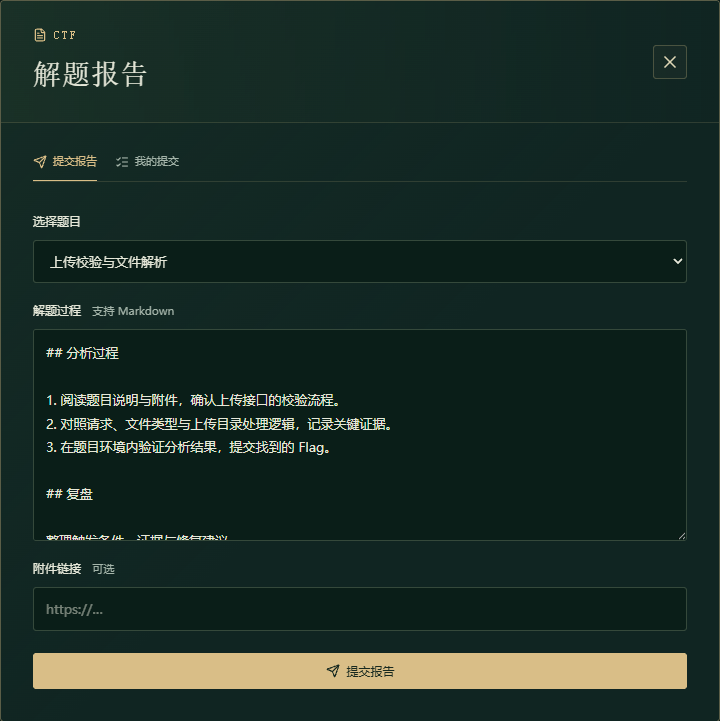
Closing with unsubmitted text produces a warning. Text held in the page should not be treated as a saved report. Flag submission and writeup submission are separate actions: if the event requires a writeup, submit it separately and confirm its record.
Confirm availability before competing
- Check registration, team eligibility, event timing, scoring rules, and writeup requirements.
- Enter the open CTF stage and choose challenges using the filters.
- Download attachments. For online tasks, start the environment, wait for it to run, and use the issued address.
- Confirm Flag feedback and solved status, then submit the required writeup.
Stage gaps, unopened stages, and eligibility restrictions can limit actions. Organizers should test challenge availability, attachments, environments, Flag validation, and writeups with a test team. On-premise installations need compatible participant, backend, and node versions. Mock screenshots verify presentation; they do not replace backend judging or container integration checks.
Explore the CTF competition system, read the AWD workspace walkthrough when planning an attack-and-defense stage, or request a product demonstration.